
Tuesday, December 23, 2008
Sunday, December 7, 2008
Folder Lock


I clicked lots of personal photographs which I cant show it to my family and cant evn keep in my system as there are many users of it. Then I thought of getting a Folder Lock software wherein I could keep all my files safe and hidden but the problem was that there are no such software available with a freeware license. I searched like hell and finally got a simple program which could do this job so I am publishing it here so that u all can take advantage of it.
/***********Start Copying here************/
cls
@ECHO OFF
title Folder Locker
if EXIST "Control Panel.{21EC2020-3AEA-1069-A2DD-08002B30309D}" goto UNLOCK
if NOT EXIST Locker goto MDLOCKER
:CONFIRM
echo Are you sure u want to Lock the folder(Y/N)
set/p "cho=>"
if %cho%==Y goto LOCK
if %cho%==y goto LOCK
if %cho%==n goto END
if %cho%==N goto END
echo Invalid choice.
goto CONFIRM
:LOCK
ren Locker "Control Panel.{21EC2020-3AEA-1069-A2DD-08002B30309D}"
attrib +h +s "Control Panel.{21EC2020-3AEA-1069-A2DD-08002B30309D}"
echo Folder locked
goto End
:UNLOCK
echo Enter password to Unlock folder
set/p "pass=>"
if NOT %pass%==type your password here goto FAIL
attrib -h -s "Control Panel.{21EC2020-3AEA-1069-A2DD-08002B30309D}"
ren "Control Panel.{21EC2020-3AEA-1069-A2DD-08002B30309D}" Locker
echo Folder Unlocked successfully
goto End
:FAIL
echo Invalid password
goto end
:MDLOCKER
md Locker
echo Locker created successfully
goto End
:End
/****************Stop Copying here*************/
Just follow the steps given below
1. Copy and paste the above code in Notepad.
2. Type your password in place of "Type your password here"
3. Save the file with *.bat extension instead of *.txt
4. Now double click to open the file.
5. When you open it, a new folder named Locker will be created in the same place.
6. Move all the folders and files you want to lock into this folder.
7. Now double click the batch file again and in the confirmation type 'y' to lock the folder, and the locker folder will disappear.
Whenever you want to unlock the folder, open the batch file and enter the password, the locker folder will reappear again.
You can convert this batch file into .exe format by just downloading Quick Batch File Compiler.
Download from here
XP2Vista

Since we all know that windows vista has been released but its too costly to purchase. The most interesting thing in Vista is its look, new icons, cursors, theme, sounds, login screen, boot screen, etc. So I’m posting this tutorial to make our existing Windows XP to look-a-like Windows Vista.
Yes! There are lots of Vista Transformation packs available on net but I never use them because they slow down the windows and also install a few 3rd party utilities. So its better to do all the things manually.
In this tutorial, I’ll tell you about how to make following things to look-a-like Vista:
Visual style (or theme)
Boot screen
Login screen
Sounds
Mouse Cursors
Windows Icons
Windows Explorer
Progress dialog box
Shutdown/log off dialog box
About Windows box
System Properties dialog box
Windows Classic Startmenu Left-side Image and Start button Logo
and a few other things
So here we go:
1. Vista Theme:
First thing which you should change in your windows is theme. There are lots of Vista themes available on net. I have also created a Vista theme for XP called “VistaVG Ultimate“.

Download VistaVG Ultimate by Vishal Gupta
Download VistaVG Ultimate with Searchbar by Vishal Gupta
If you use WindowBlinds, then you can also get the glass affect. You can search on DeviantART and you’ll get lots of WB skins.
2. Vista Boot Screen:
In Vista, Microsoft has removed the graphical boot screen and there is a minimal boot screen with just a progress bar. But it looks nice and you can download a similar boot screen for XP from here:
Use Tuneup Utilities to apply it. Its completely safe. To know more about Tuneup Utilities, visit following link:
How to change Windows XP Boot Screen using Tuneup Utilities
3. Vista Login Screen:
Vista new login screen is just awesome and “ears1991″ at DeviantART created a look-a-like login screen for XP, which you can download from here:
This pack contains both LogonXP and LogonUI files. So you can either replace existing %windir%System32LogonUI.exe file with the LogonUI file in the pack or use Stardock LogonStudio and apply the LogonXP file.
4. Vista Sounds:
Vista contains new sounds, which are quite nice. You can download the whole pack from here:
Just open “Sounds & Audio Devices” (mmsys.cpl) in Control Panel and goto “Sounds” tab and here you can replace windows default sounds with the new ones.
5. Vista Cursors:
Vista cursors are really sexy. You can download the pack from here:
6. Vista Icons:
Here is an Icon Pack for Windows XP, which will change XP default icons with Windows Vista icons. So you’ll experience the high-resolution Vista icons in XP:
VistaVG Icon Pack for Windows XP
7. Vista Explorer:
Vista Explorer is very much different from XP Explorer. It contains Back & Forward buttons along with the Address bar & Searchbar and under it there is another toolbar containing useful links, like Tile icons, details, etc. But there is a 3rd party utility available called “Styler“, which can add the same toolbars in XP explorer too. Just download Styler from here and then download following Styler Skin:
Download VistaVG Styler Skin
Mirror
Now extract it and copy this skin to “%ProgramFiles%StylerTBskinsStyler’s” directory and then apply it from the styler.
Another thing in Vista is the Common Tasks are displayed at bottom of the explorer instead of the default left-side in XP. But if you’ll use my “VistaVG” theme, then you’ll get the Common Tasks at bottom automatically.
8. Progress Dialog Box:
Vista progress dialog box is different from XP. But we can make our XP dialog box to look-a-like Vista one by using Resource Hacker.

Just open “%windir%System32Shell32.dll” file in Resource Hacker and then goto:
Dialog -> 1020 -> 1033
Now replace the existing code in right-side pane with the code in following file:
Click on Compile Script button.
You’ll also have to replace existing AVIs in the file with new Vista ones. Just download following Zip file and extract it:
After extracting the Zip file you’ll get 3 AVI files. Replace existing AVIs in shell32.dll file with these new ones in following manner:
AVI -> 160 ->1033 with 160.avi
AVI -> 161 ->1033 with 161.avi
AVI -> 162 ->1033 with 162.avi
AVI -> 163 ->1033 with 162.avi
AVI -> 164 ->1033 with 162.avi
And also download a BMP file from here:
After extracting the BMP file from it, add it at 404 location in file. Just click on Action -> Add a new resource and then click on Open file with new resource button. Select the downloaded BMP file and click on Open. Now in Resource Name enter 404 and in Resource Language enter 1033 and click on Add Resource button. Thats it.
9. Shutdown/log off dialog box:
Windows Vista doesnt have any shutdown/logoff dialog box just like XP have but XP default dialog box doesnt look good. So here I’ll tell you how to change it in XP?

Download required BMP files from here:
Extract the file and you’ll get 4 BMPs with the name:
1.bmp
2.bmp
3.bmp
4.bmp
Now open “%windir%System32Shell32.dll” file in Resource Hacker and then replace following BITMAPs with the mentioned BMP files:
Bitmap -> 14351 -> 1033 with 1.bmp
Bitmap -> 14353 -> 1033 with 2.bmp
Bitmap -> 14354 -> 1033 with 1.bmp
Bitmap -> 14355 -> 1033 with 2.bmp
Bitmap -> 14356 -> 1033 with 3.bmp
now save the file and open %windir%System32msgina.dll file in Resource Hacker and then replace following BITMAPs with the mentioned BMP files:
Bitmap -> 20140 -> 1033 with 1.bmp
Bitmap -> 20141 -> 1033 with 2.bmp
Bitmap -> 20142 -> 1033 with 1.bmp
Bitmap -> 20143 -> 1033 with 2.bmp
Bitmap -> 20150 -> 1033 with 4.bmp
Now save the file.
10. About Windows box:
To change the About Windows box you’ll have to change 2 things:
The BITMAP file and the text of box saying Windows XP.

Download the required BITMAP file from here:
Open “%windir%System32Shell32.dll” file in Resource Hacker and then replace following BITMAPs with the downloaded BMP file:
Bitmap -> 131 -> 1033 (For XP Professional)
Bitmap -> 147 -> 1033 (For XP Home)
Now open %windir%System32msgina.dll file in Resource Hacker and then replace following BITMAPs with the downloaded BMP file:
Bitmap -> 101 -> 1033 (For XP Professional)
Bitmap -> 107 -> 1033 (For XP Professional)
Bitmap -> 128 -> 1033 (For XP Home)
Bitmap -> 129 -> 1033 (For XP Home)
Now to change the text of dialog box, open “%windir%System32xpsp1res.dll” file in Resource Hacker and then goto:
Dialog -> 14352 -> 1033
Now replace the existing code in right-side pane with the code in following file:
Click on Compile Script button and save the file.
11. System Properties dialog box:
To change the System Properties dialog box, you can follow this tut:
Hacking System Properties Dialog Box (Sysdm.cpl file) in Windows XP
12. Windows Classic Startmenu Leftside Image and Start button Logo:
To change them first download required BMP files from here:
Download Startmenu and Start button BMP
Mirror
After extracting the BMP files, open %windir%Explorer.exe file in Resource Hacker and then replace following BITMAPs with the mentioned BMP files:
Bitmap -> 166 -> 1033 with 1.bmp (For XP Home)
Bitmap -> 167 -> 1033 with 1.bmp (For XP Professional)
Bitmap -> 176 -> 1033 with 2.bmp
Now a few more tricks:
1. Windows Vista shows the “View” menu on desktop too, you can also enable it in XP using following tut:
How to enable “VIEW” Menu on Desktop in Windows XP

2. Windows Vista’s All Programs menu is different from XP, you can follow following tut to make ur XP Programs menu similar to Vista:
Change Look-n-Feel of Windows XP Start Menu
3. In Windows Vista an animated Vista Logo is also displayed before the Login screen. You can also do a similar thing in XP. Just download required BMP file from here:
Mirror
Open regedit and goto:
HKEY_USERS.DEFAULTControl PanelDesktop
In right-side pane change the value of Wallpaper String value to the Path of downloaded BMP file. e.g., if you saved the BMP file at “D:Startup.bmp”, then set the value of Wallpaper to D:Startup.bmp. Now you’ll get a similar Vista Logo just before the Login screen in XP too.
4. In Windows Vista explorer, A small horizontal progress bar is displayed under each drive icon showing the filled/remaining space in the drive. You can also do the same in XP by using a 3rd party utility, which I have uploaded here:
Download Vista Drive Status Utility
Mirror
Just run the file and it’ll add the progress bar in each drive.
5. In Windows Vista explorer, we get Bread Crumbs in addressbar which is quite useful. You can also get the same feature in Windows XP using “QT Addressbar”:
QT Addressbar: Windows Vista Addressbar Clone for Windows XP
6. Windows Vista also contains a Sidebar, which is displayed on right-side on desktop (by default and can be changed to be displayed at left-side). You can also use a sidebar in XP. Just download it from here.
7. If you have any problem with Resource Hacker and want to know about it, then please go through following tuts:
All About Resource Hacker in a Brief Tutorial
List of Files to be hacked using Resource Hacker
List of a few Locations in Windows XP System Files to be Hacked using Resource Hacker
8. If you get error while saving the system files, then its happening because of the WFP (Windows File Protection) service, which can be disabled using WFP Patcher or you can use Replacer to replace system files with ur hacked ones. You can get all these utilities from following topic:
List of Some Useful System Utilities!
Thats all for now guys. If you have more suggestions then please post them.
Remember this tutorial is for doing the task manually and not using the transformation packs.
Make computer shutdown
In this tutorial you will learn how to make a virus joke to your friends and shut down their computer. Replace one of their used icons on the desktop with a fake one. And when they try to open it, their computer will close.
1. Right click on the desktop and go to New -> Create Shortcut.
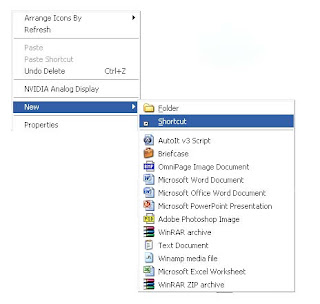
1. Right click on the desktop and go to New -> Create Shortcut.

2। Type in the windows that appears: shutdown -s -t 60 -c "Virus Detection. Computer is shutting down." Instead of 60 you can put what value you want. It represents the time in seconds. And also between quotes you can put what message you desire.

3. Click Next and type Internet Explorer. You can write whatever you want.

4। You will have a program like this on your desktop.

5। We need to change its icon to look like Internet Explorer। Right click on it and choose Properties.

6. Go to Shortcut ->Change Icon.

7. You can find the icon in the ones available or go to C:/Program Files/ Internet Explorer and select the icon from there.

8. After the icon is selected press Open.

9. The 'virus' will look like Internet Explorer.
10। And when you open it the computer will be closed in 60 seconds or whatever value you chosed.
11. The only way to stop the computer from shutting down is to go to Start->Run and type shutdown -a, and press Enter

Remember that this is just for educational purposes only and you should not harm computers and their functionality.
Quick Batch File Compiler
Quick Batch File Compiler convert your batch files into actual program (.EXE format) in one click. This program may be run on Windows 2000/2003/XP/Vista without any limitations. An .EXE file is much harder to casually reverse-engineer, so this could be a way to conceal a particular batch file's operations from an end user. Content of your batch file will be encrypted and protected from changes. Quick Batch File Compiler also lets you set various resources in the .EXE file, such as its description, the company name, version information and even the application icon. In additional, you may include any files to compiled exe file and use it during execution.
Product Features :
Can compile any batch file to exe format compatible with Windows 2000/XP/2003/Vista.
Command line compilation.
"Ghost" mode: application opens no windows and provides no feedback - best way to perform an install or modification silently.
Custom application resources. You can define Icon and Version Info for EXE-file.
Protects contents of a batch file from the non-authorized change
Hides contents of a batch file from viewing. Keep your secrets!
It is not necessary to be the programmer to create the program
It is very useful for installation and automation tasks
Highlight command's syntaxis inside built-in editor
Exe file does not need LIBRARies or DLL files
Can store additional files required during execution into one EXE file.
Royalty Free. You can create unlimited products without having to pay royalties.
Lifetime free upgrades.
Minimum System Requirements
Microsoft Windows NT/2000/XP/2003/Vista
Microsoft Internet Explorer 4 or higher
Pentium MMX processor or faster
16 MB RAM or more.
Download Quick Batch File Compiler now:
quickbfc.exe (1,01 MB only)
Subscribe to:
Posts (Atom)


